Canvas and workspace
The Flow Studio shell is a multi-tab workspace. Each tab is an independent flow document with its own canvas state, undo history, and run status.
Flow tabs
Section titled “Flow tabs”The flow-tab strip floats over the canvas top-left and renders in canvas mode:
- Drag to reorder tabs.
- Double-click or right-click to rename a flow.
- Lock a tab so that it cannot be closed.
- Create or load flows via the plus and folder controls.
Switching tabs snapshots the live canvas into the outgoing tab and hydrates the incoming one. Tabs persist across restarts (minus undo history and run status, which reset on reload).
Each tab runs and is steered independently. The run controls for pause, resume, and stop are id-scoped to each execution. Every execution event is attributed to its owning tab. A single run-state source of truth feeds the status bar, the run button, and the per-tab indicator, and that state survives tab switches. Interception and destructive-confirmation prompts name the flow, node, and step, and they focus the owning tab.
Toolbars and panels
Section titled “Toolbars and panels”- Canvas toolbar (floating, top-right) holds the per-flow controls for undo/redo, save, auto-layout, schedule, and run/pause/stop. During any run the canvas re-centers on the active node, and a follow toggle in the toolbar turns this on and off.
- Global header holds the app-level controls. These are the mode selector (Canvas / DSL / Generate), the LLM token ticker, the notifications bell, server status, theme, history, layout, and settings.
- Logs panel docks at the bottom of the canvas column. You can collapse it with the keyboard shortcut or the slim LOGS bar. The verbose execution trace lives here, including per-node streaming output, validation messages, and run lifecycle events.
- Notifications is a separate, small store of high-signal moments such as run completion, monitor interception, a pre-run validation block, and an agentic apply or error. These are surfaced through the header bell with an unread badge.
Canvas and DSL, two views
Section titled “Canvas and DSL, two views”Click DSL in the header to swap the canvas for a full-pane text editor showing the same graph as Flow DSL. Edit the text, apply, and the parsed graph is auto-laid-out back onto the canvas. The Generate mode accepts a natural-language description and proposes a graph for review.
Edge outcomes on the canvas
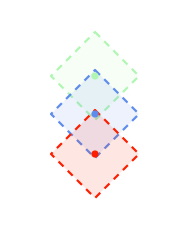
Section titled “Edge outcomes on the canvas”Nodes carry two source handles, a green pass diamond and a red fail diamond, along with the default always routing. Each edge renders with a colored pill at its midpoint so a flow is easy to read at a glance. Action nodes carry an explicit Adapter dropdown in the inspector so the action list always matches the adapter, and the canvas label renders the real adapter prefix.
Pre-run validation
Section titled “Pre-run validation”Before any run, every action node’s required adapter fields are checked. If a field is missing, the run is blocked. Each issue is logged to the validation source, a header notification is pushed, and the canvas selects the first offending node so the inspector opens to it.
The per-flow execution workspace
Section titled “The per-flow execution workspace”Each flow can carry an execution workspace (Properties → Flow → Workspace).
This is the folder that anchors shell, cli, and fs nodes at run time. If
you leave it unset, it defaults to a per-flow scratch directory. The workspace
is an execution concern. It is resolved at run time and never sent to a model.